Download TDownloader #
First step: download the app for your system. It's free and needs no registration. Then scroll down to your system's section to install it.
Install on Windows #
When you open the installer, Windows shows a blue SmartScreen warning. This is completely normal: it appears with any new app that does not yet have a paid signing certificate. The app is safe; you just need to tell Windows to continue.
Double-click the
TDownloader-setup.exefile you downloaded.-
The blue screen Windows protected your PC appears. Click the More info link.
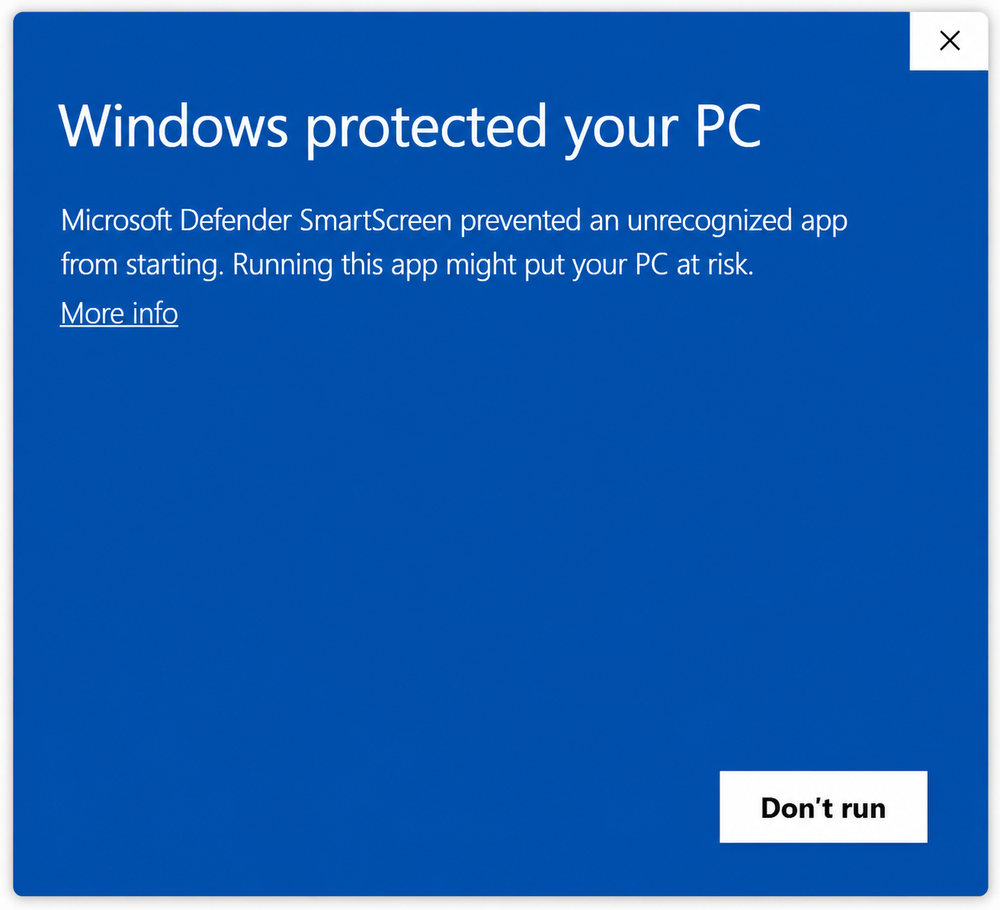
Click More info. -
The app name is shown and a new button appears. Click Run anyway.

Click Run anyway. Continue the installer as usual and open TDownloader.
Install on macOS #
macOS may say the app is damaged and can’t be opened (or that it is from an unidentified developer). It is not damaged: it is the Gatekeeper protection blocking apps that do not yet have Apple’s paid signature. It takes 10 seconds to fix.
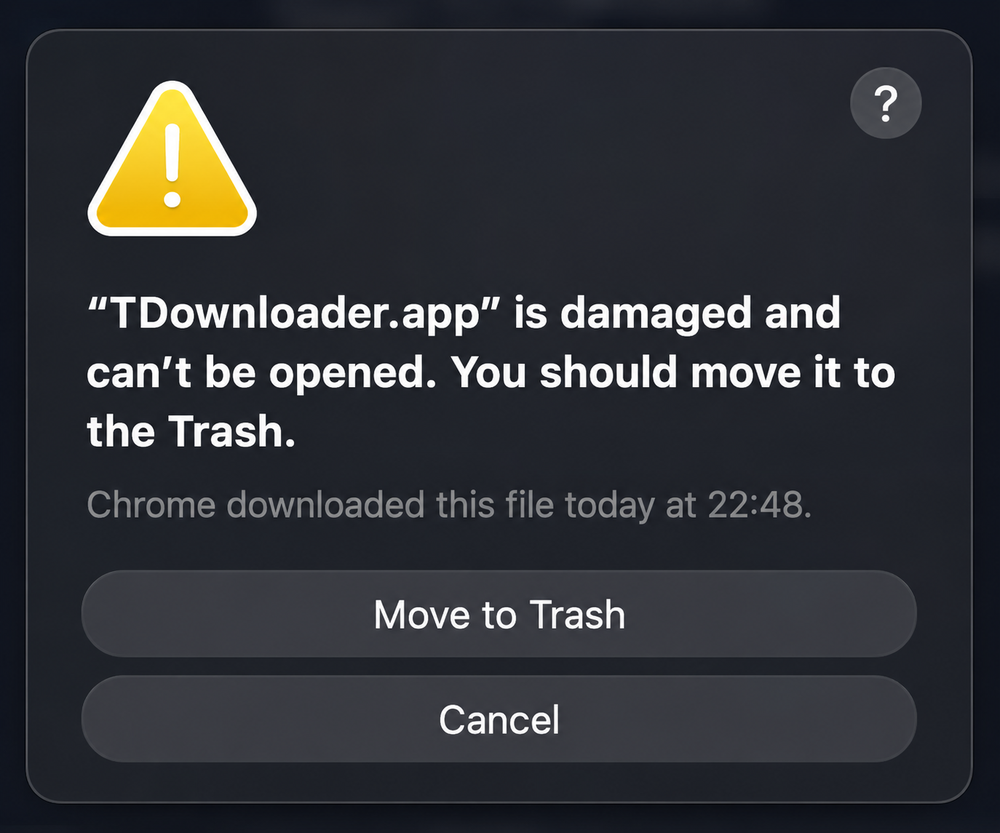
Drag TDownloader to your Applications folder. In the alert, click Cancel (NOT Move to Trash).
-
Open the Terminal app (in Applications → Utilities, or with Spotlight: Cmd+Space and type Terminal). Paste this command and press Enter:
xattr -dr com.apple.quarantine /Applications/tdownloader.appIt removes the quarantine flag that macOS adds to downloads. It asks for no password and, if it works, shows no message.
Open TDownloader normally (double-click). It will no longer complain.
.dmg over it by hand, because you would go through Gatekeeper quarantine again and have to repeat the xattr command step above.Install on Linux #
There are two formats. Use whichever you prefer.
Package .deb Ubuntu, Debian, Mint...
Double-click the file to install it from the Software Center, or from a terminal:
sudo apt install ./tdownloader_*.debAppImage any distribution
The AppImage needs no installation: just make it executable and open it.
-
Right-click the file → Properties → Permissions → tick Allow executing file as program. Or from a terminal:
chmod +x TDownloader-*.AppImage Double-click to open it.
Create your API ID and API Hash #
Telegram requires personal credentials (an API ID and an API Hash) for apps to access your account. You create them once, they are free and take a minute. Telegram’s page is in English; here is every step with its screenshot.
-
Go to my.telegram.org. Enter your phone number in international format (with the country code, for example
+34611223344) and click Next.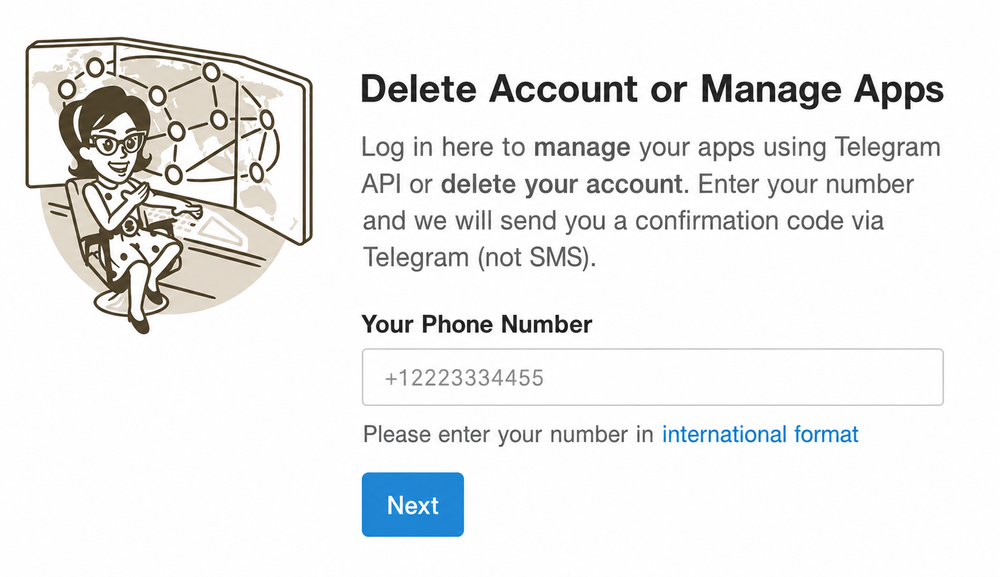
Your number with country code → Next. -
Telegram sends a login code to your Telegram app (NOT by SMS). Open Telegram on your phone or computer: in the official Telegram chat you will see a message with your Web login code.

The code arrives inside Telegram, in the Telegram chat. -
Go back to my.telegram.org, type that code in Confirmation code and click Sign In.
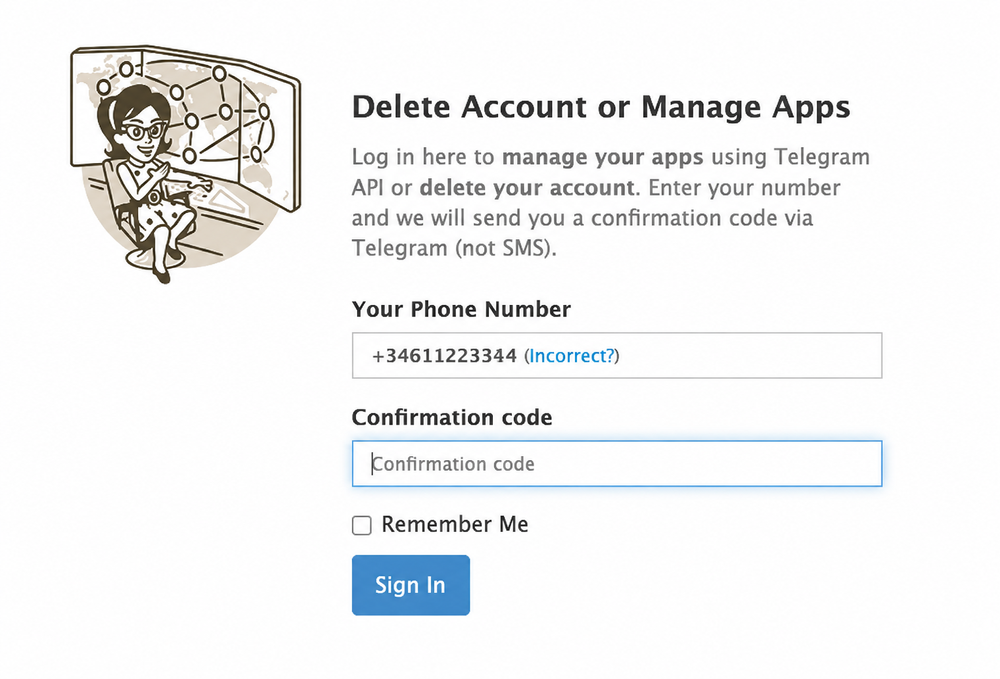
Paste the code → Sign In. -
Click API development tools.
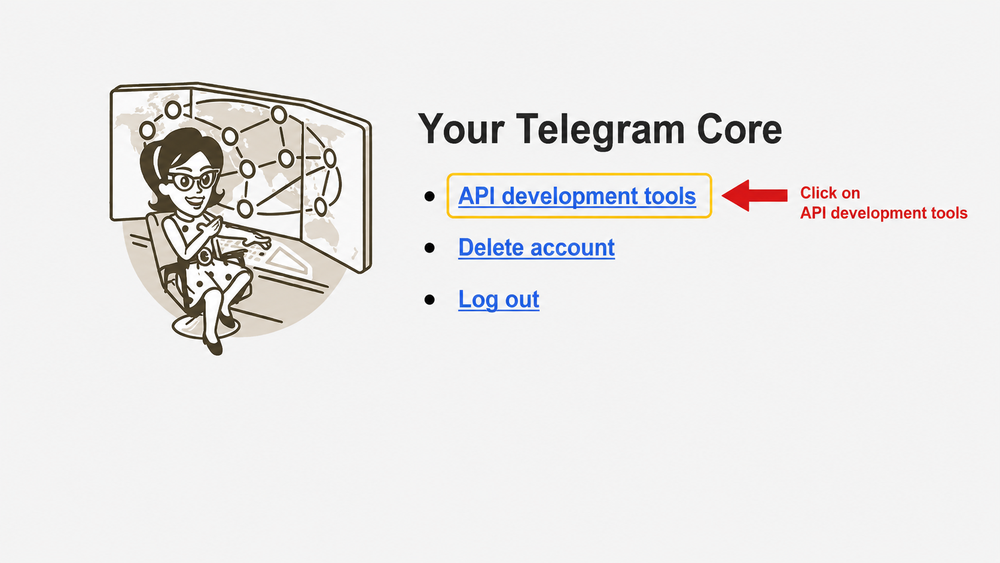
Click API development tools. -
Fill in the Create new application form with these values and click Create application:
- App title
TDownloader- Short name
TDownloader(5 to 32 letters or digits)- URL
- Leave it blank
- Platform
- Choose Desktop
- Description
TDownloader app(or leave it blank)
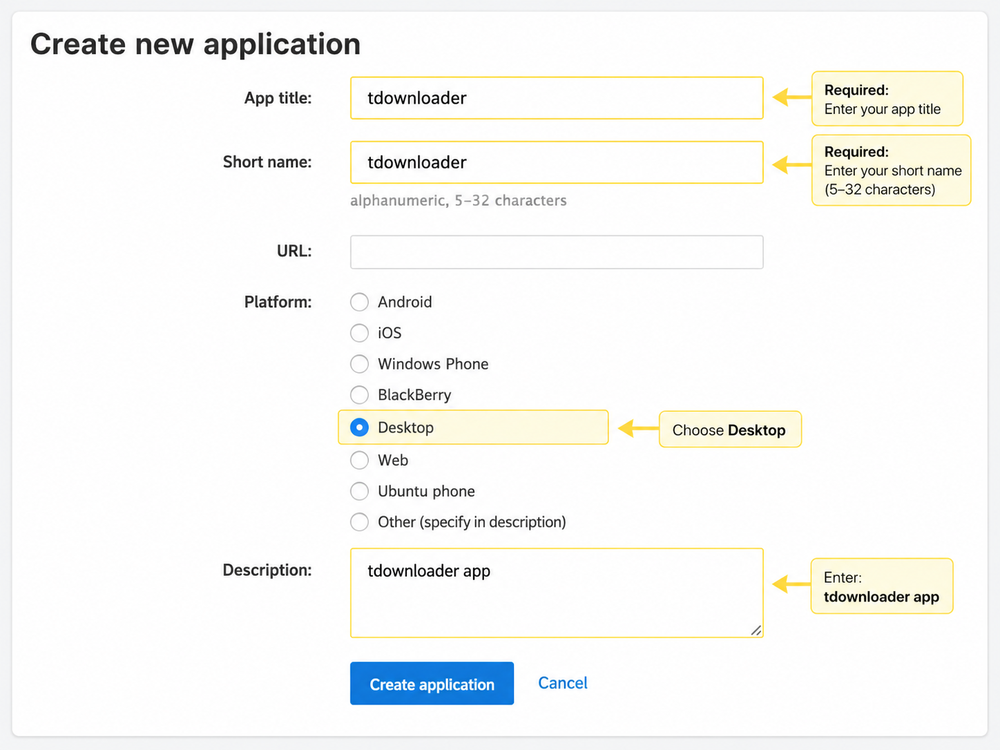
Fill it in like this and click Create application. -
You will see two values: App api_id (a number) and App api_hash (a long string of letters and digits). Copy both. They are the only ones you need.
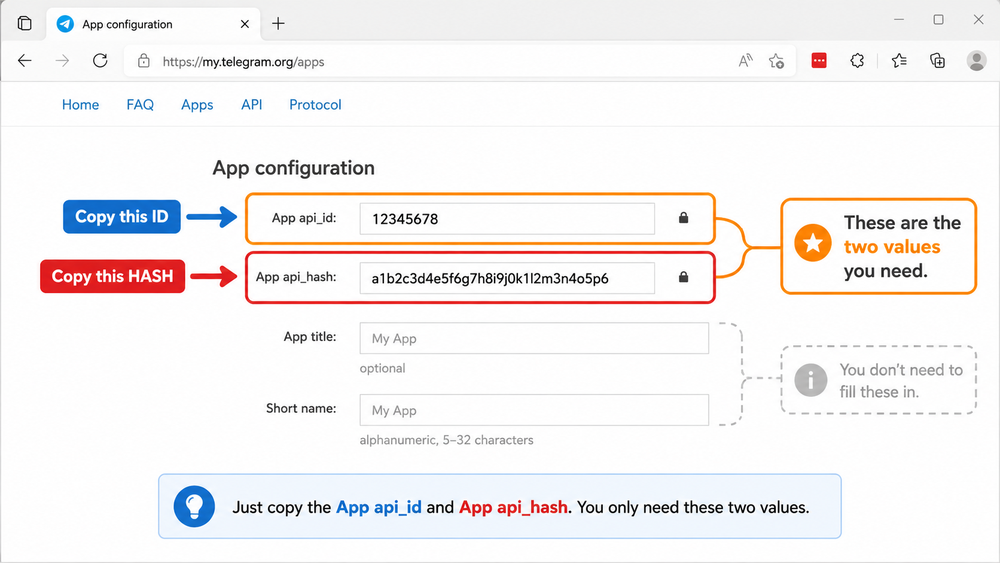
Copy App api_id and App api_hash. Go back to TDownloader: paste the api_id into the API ID field and the api_hash into API Hash, add your phone number and click Send code. Done!